> ## Documentation Index
> Fetch the complete documentation index at: https://moengage-doc-2312-standard-user-attributes.mintlify.site/llms.txt
> Use this file to discover all available pages before exploring further.
# Sign Up with MoEngage
> Create your first MoEngage workspace with a password or Google account, or finish setting up your workspace as an invited user.
Signing up with MoEngage creates your first workspace. You must complete this one-time step based on your organization's requirements.
**Prerequisite**
You must have a valid subscription code to sign up on MoEngage. Contact your sales representative to obtain your subscription code.
## Create a Workspace
1. Visit the following URL:
```auto theme={null}
https://dashboard-0X.moengage.com/v4/#/auth/signup
```
The `X` in the URL refers to the MoEngage data center (DC). You can find your DC number by referring to the [data center and API endpoint mapping](/user-guide/data/key-concepts/data-centers-in-moengage). The Create your account page appears. If you have questions about your data centre, contact your sales representative. 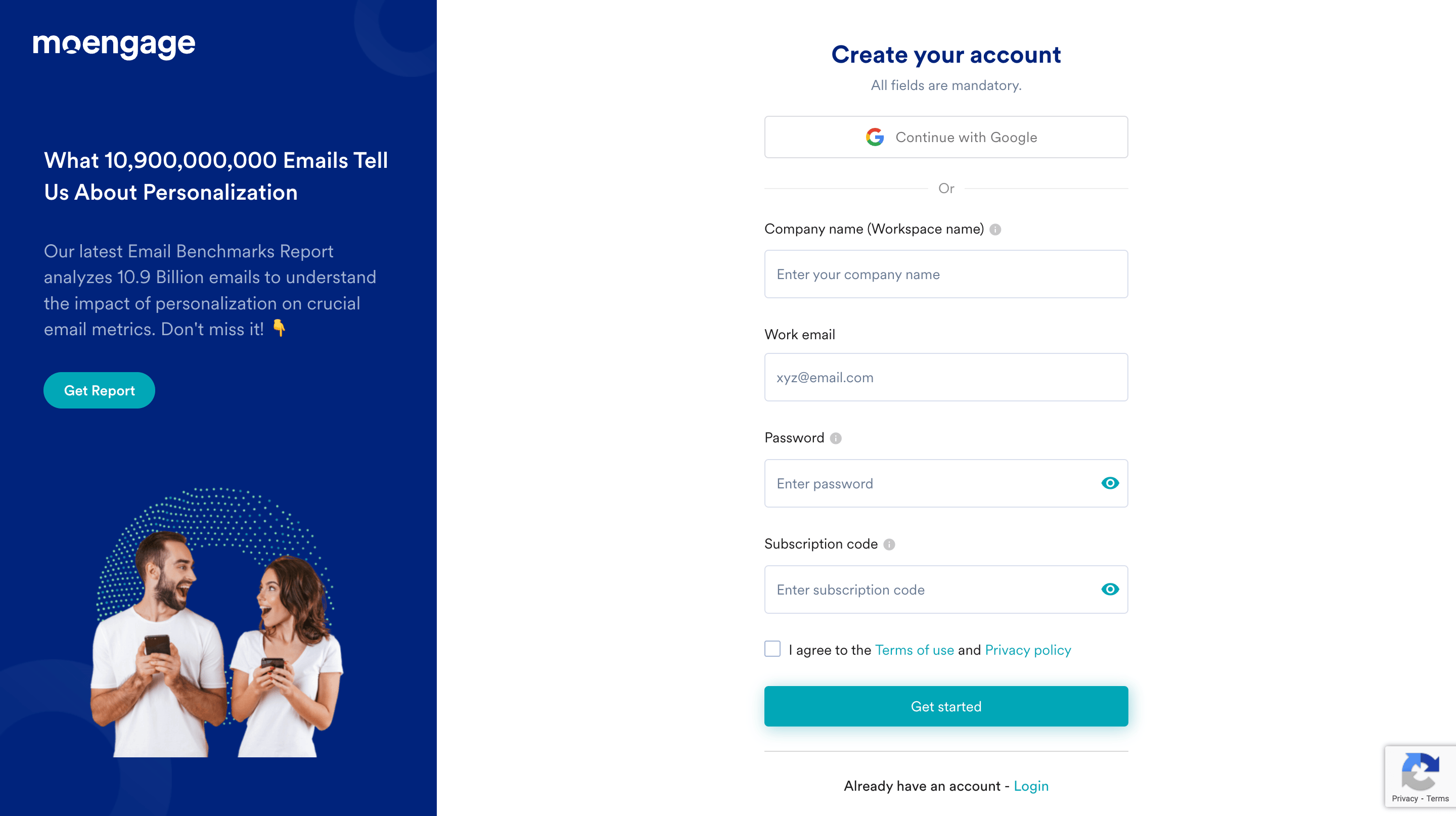 2. Create your workspace using one of the following methods:
* [Using a password](#using-a-password)
* [Using your Google account](#using-your-google-account)
### Using a Password
1. In the **Company name (Workspace name)** box, type your company name. This will also be the name of your workspace in the MoEngage dashboard.
2. In the **Work email** box, type your work email.
3. In the **Password** box, type your password. Ensure the password meets the following criteria:
* Contains 8 to 20 characters.
* Contains one capital letter.
* Contains one number.
* Contains one special character from: `! @ # $ % ^ & * ( ) _ ? / , < > ; : { } | ~` with no spaces.
4. In the **Subscription code** box, type your subscription code.
5. Select the **I agree to the Terms of use and Privacy policy** check box.
6. Click **Get Started**.
2. Create your workspace using one of the following methods:
* [Using a password](#using-a-password)
* [Using your Google account](#using-your-google-account)
### Using a Password
1. In the **Company name (Workspace name)** box, type your company name. This will also be the name of your workspace in the MoEngage dashboard.
2. In the **Work email** box, type your work email.
3. In the **Password** box, type your password. Ensure the password meets the following criteria:
* Contains 8 to 20 characters.
* Contains one capital letter.
* Contains one number.
* Contains one special character from: `! @ # $ % ^ & * ( ) _ ? / , < > ; : { } | ~` with no spaces.
4. In the **Subscription code** box, type your subscription code.
5. Select the **I agree to the Terms of use and Privacy policy** check box.
6. Click **Get Started**.
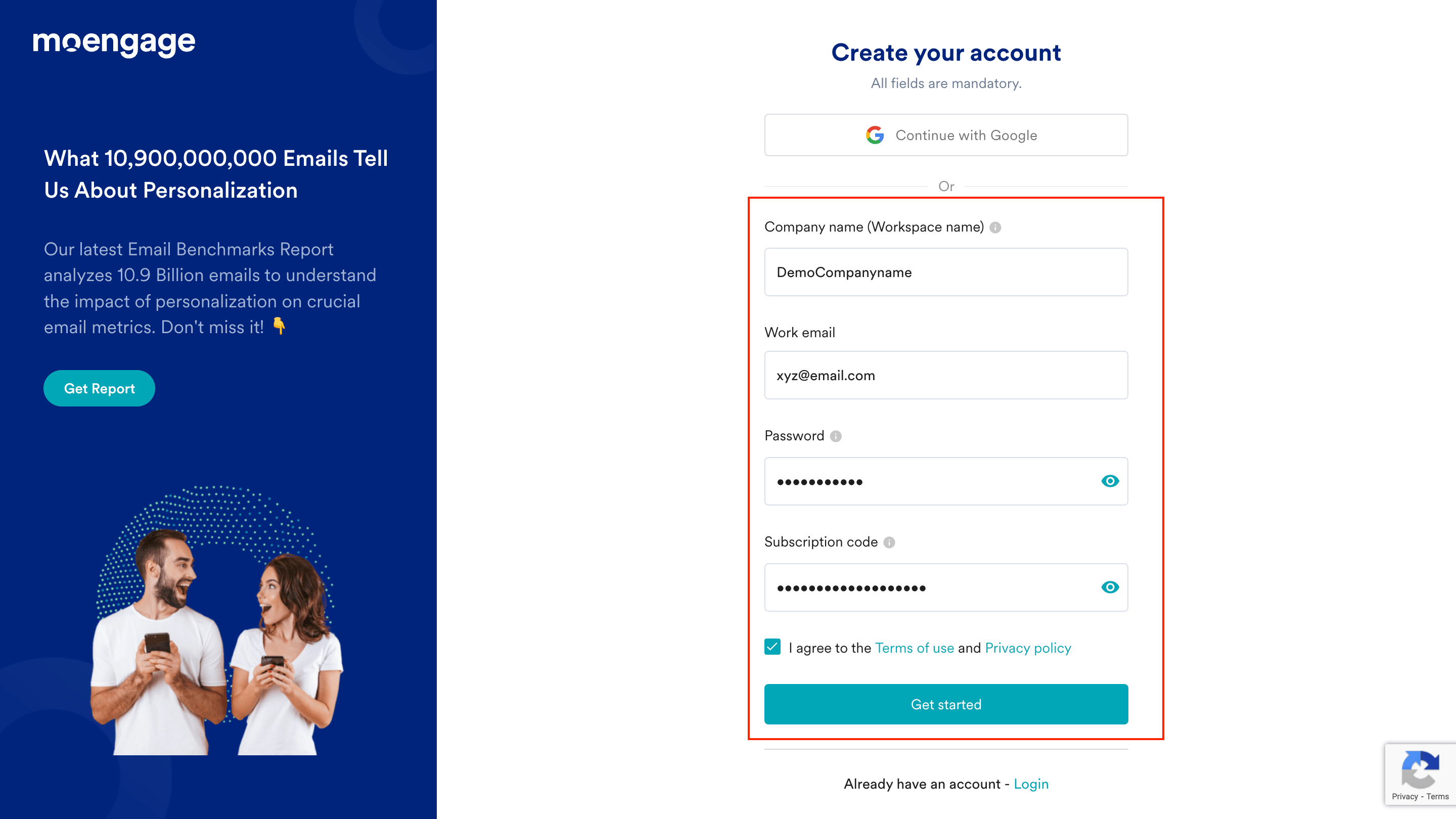 MoEngage sends a verification email to your registered email address.
 If you haven't received the verification email, click **Resend verification email**.
7. Open the email from MoEngage and click the activation link.
If you haven't received the verification email, click **Resend verification email**.
7. Open the email from MoEngage and click the activation link.
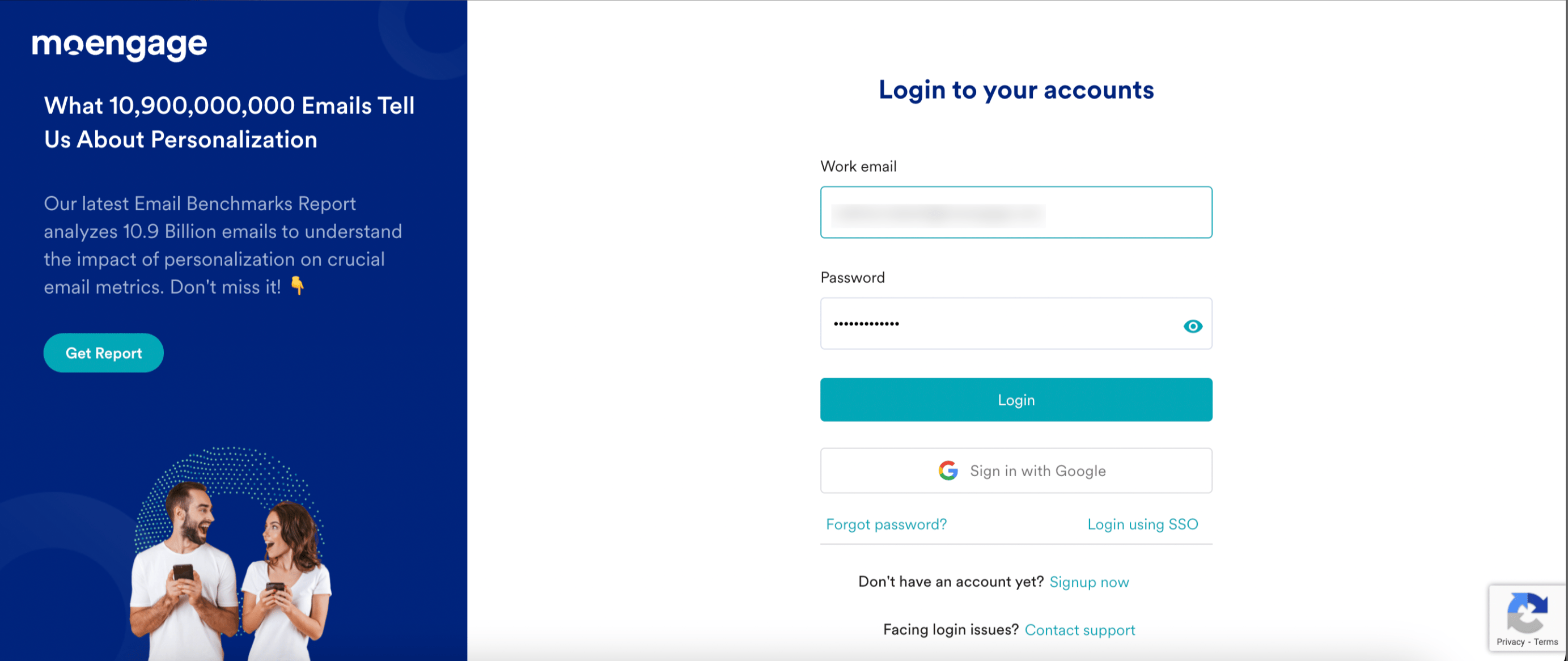
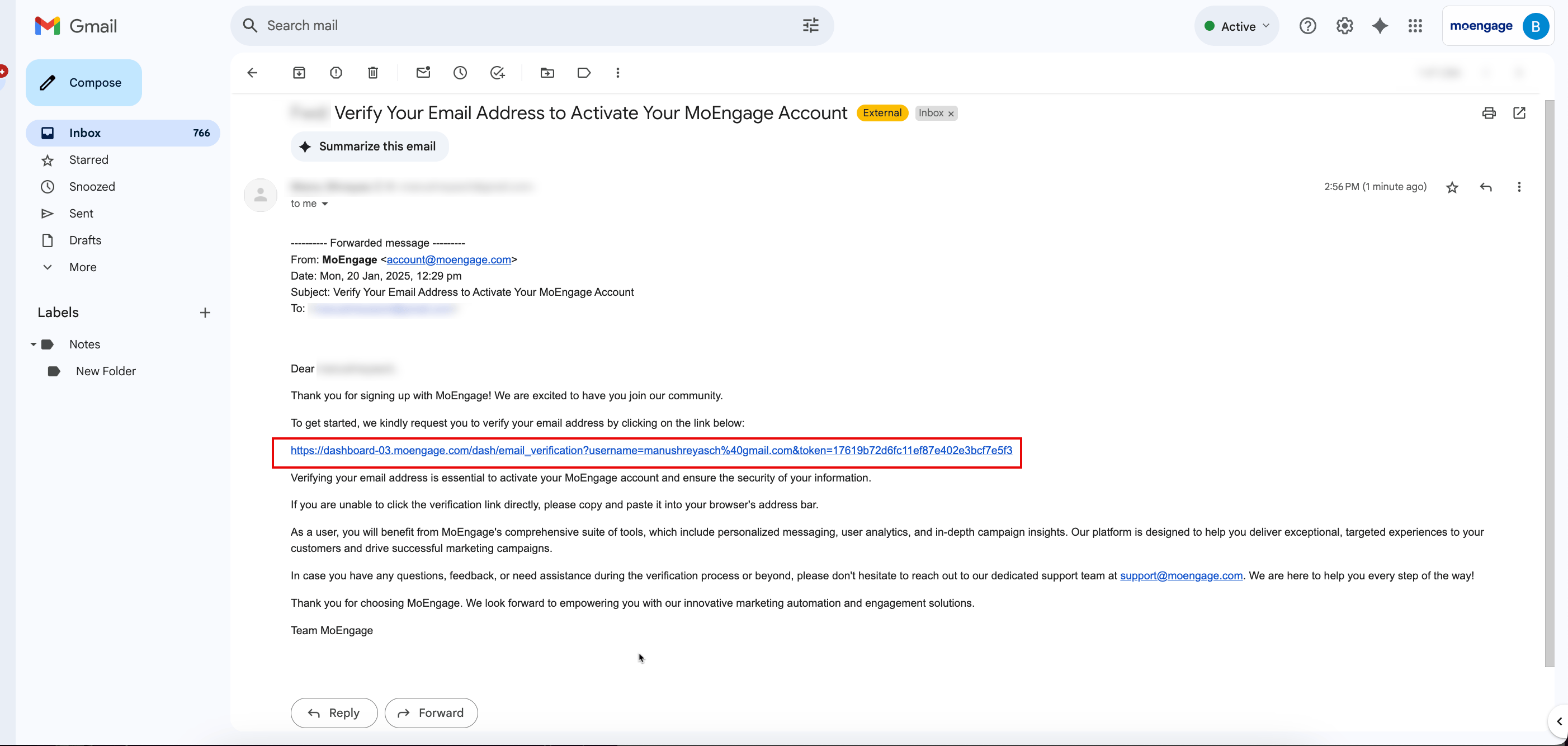 After verification, you are directed to the login page.
 ### Using Your Google Account
1. Click **Continue with Google**.
### Using Your Google Account
1. Click **Continue with Google**. 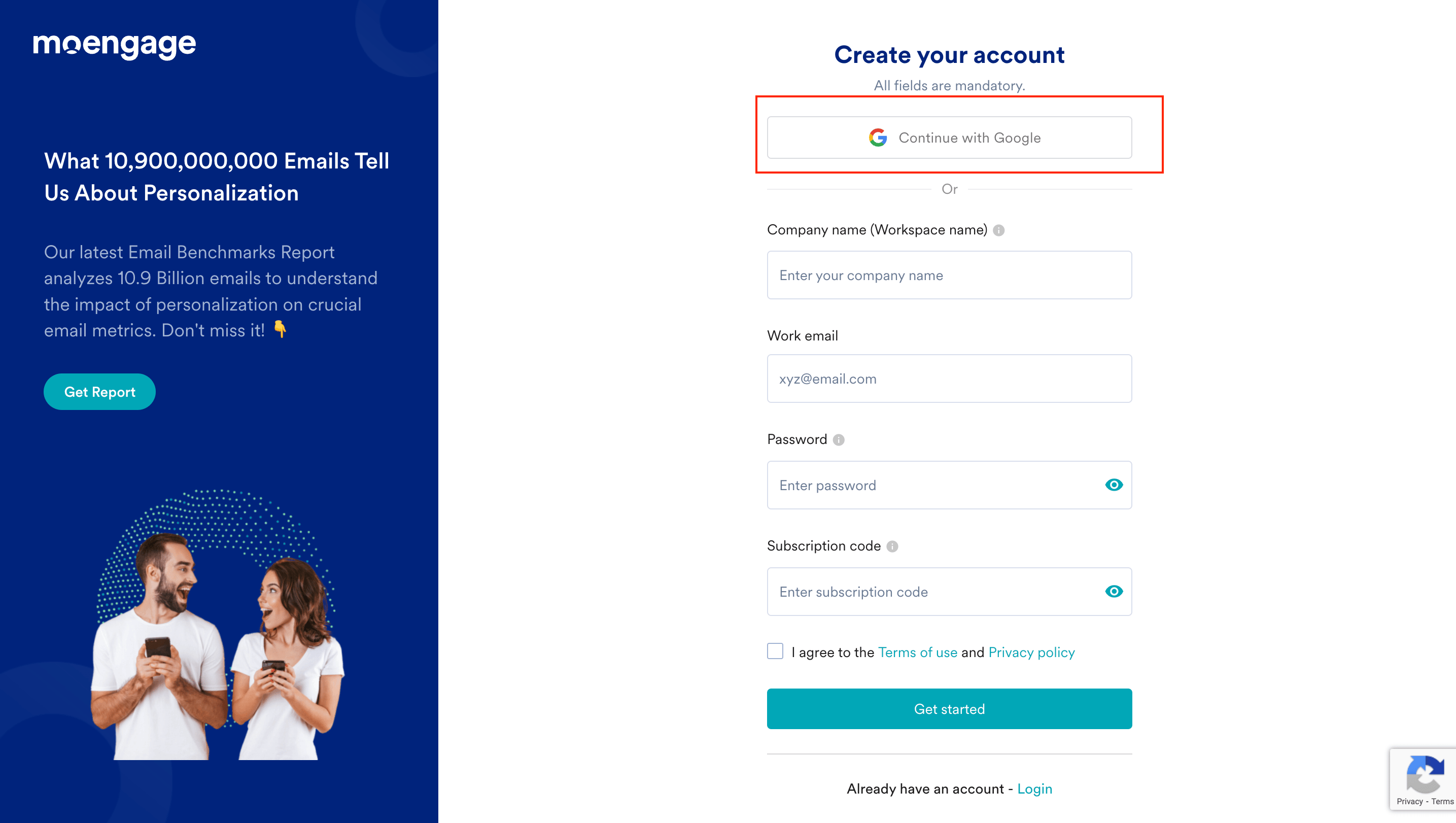 2. On the **Sign in with Google** page, choose your Google account.
 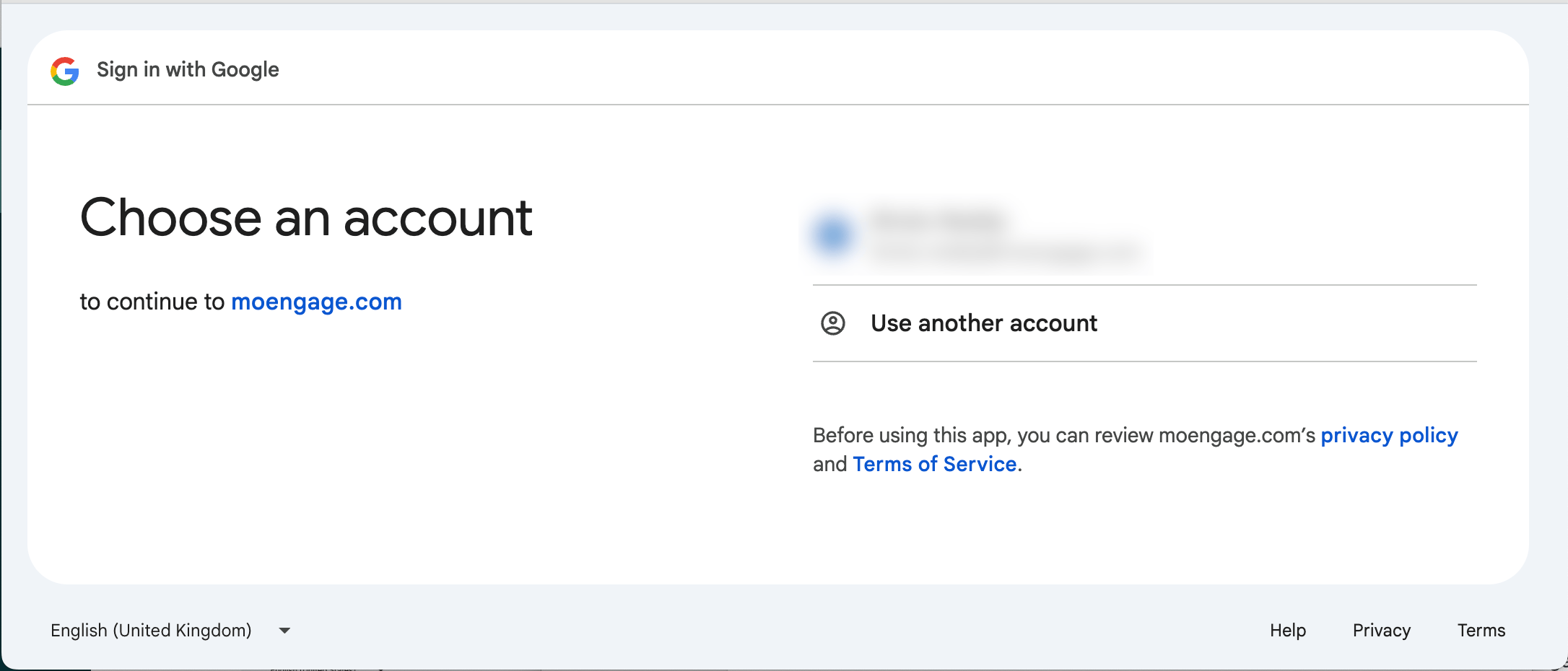 3. On the Sign in to moengage.com page, click **Continue**.
  The **Finish signing up** page appears.
 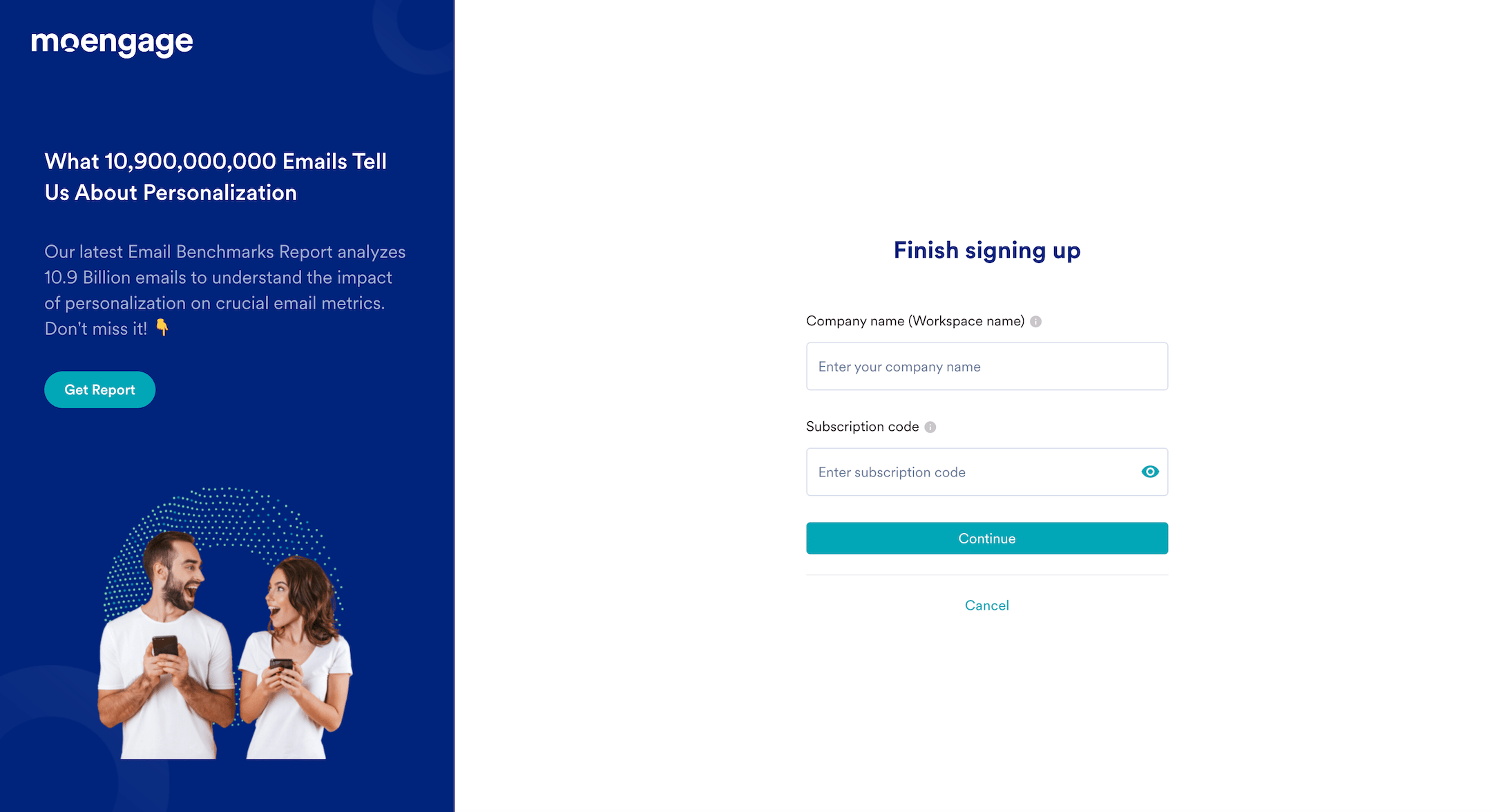 4. In the **Company name (Workspace name)** box, type your company name or workspace name.
5. In the **Subscription code** box, type your subscription code.
6. Click **Continue**.
4. In the **Company name (Workspace name)** box, type your company name or workspace name.
5. In the **Subscription code** box, type your subscription code.
6. Click **Continue**.
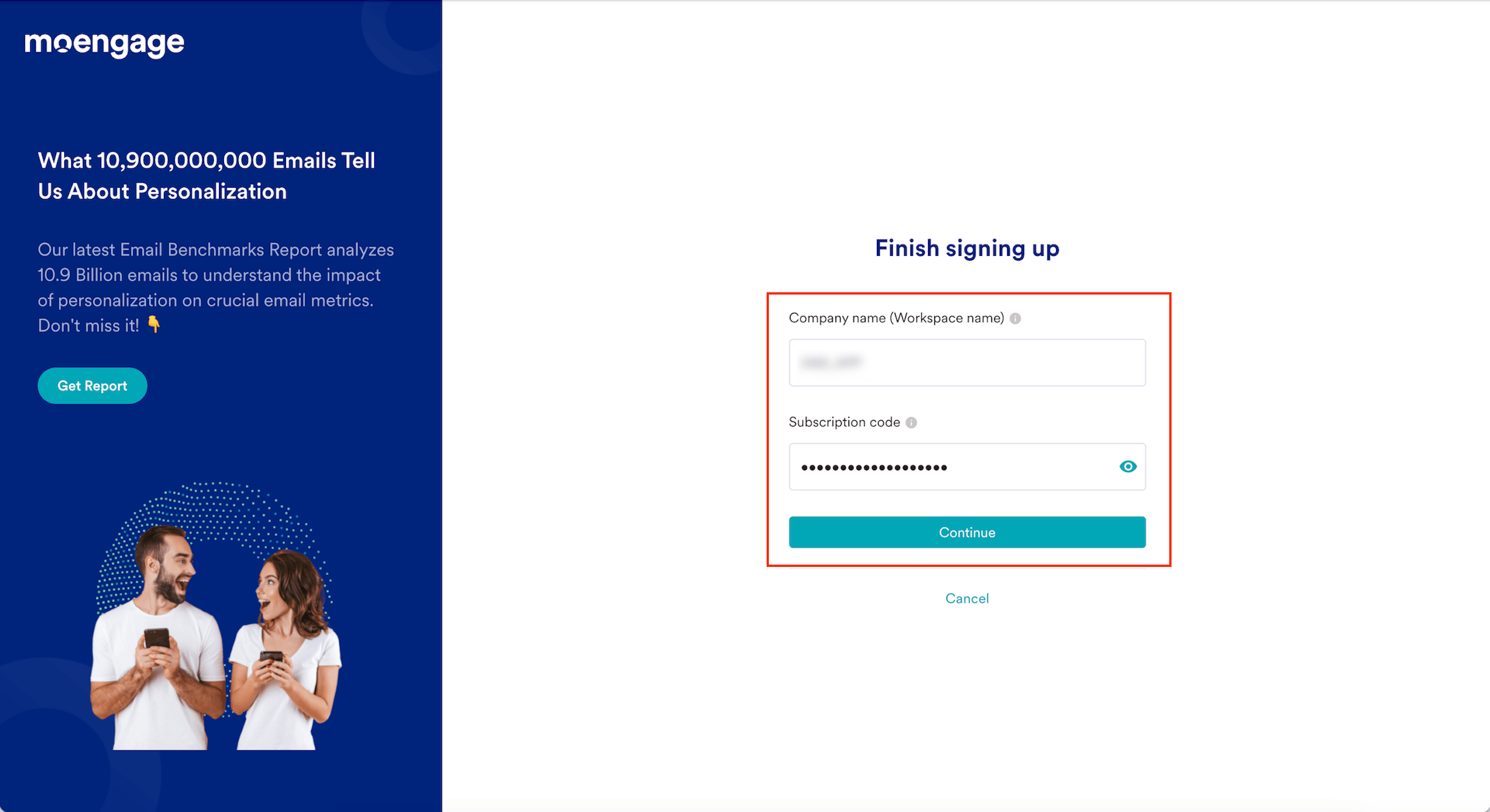 Your workspace is created. You are directed to the login page.
MoEngage enables 2-step verification by default to protect your workspace from unauthorized access. When you log in for the first time, MoEngage prompts you to set up 2-step verification on your device. For more information, refer to [Set Up 2-Step Verification on Your Device](/user-guide/getting-started/initial-setup/log-in-to-moengage#set-up-2-step-verification-on-your-device).
## Finish Your Workspace Setup as an Invited User
If someone invited you to a MoEngage workspace, you must complete a one-time setup before logging in for the first time.
**Prerequisites**
After having been invited to a workspace, you will receive a welcome email from **Moengage Alerts** ([alerts@moengage.com](mailto:alerts@moengage.com)) with the following subject line:
`` has invited you to join MoEngage for ``
Your workspace is created. You are directed to the login page.
MoEngage enables 2-step verification by default to protect your workspace from unauthorized access. When you log in for the first time, MoEngage prompts you to set up 2-step verification on your device. For more information, refer to [Set Up 2-Step Verification on Your Device](/user-guide/getting-started/initial-setup/log-in-to-moengage#set-up-2-step-verification-on-your-device).
## Finish Your Workspace Setup as an Invited User
If someone invited you to a MoEngage workspace, you must complete a one-time setup before logging in for the first time.
**Prerequisites**
After having been invited to a workspace, you will receive a welcome email from **Moengage Alerts** ([alerts@moengage.com](mailto:alerts@moengage.com)) with the following subject line:
`` has invited you to join MoEngage for ``
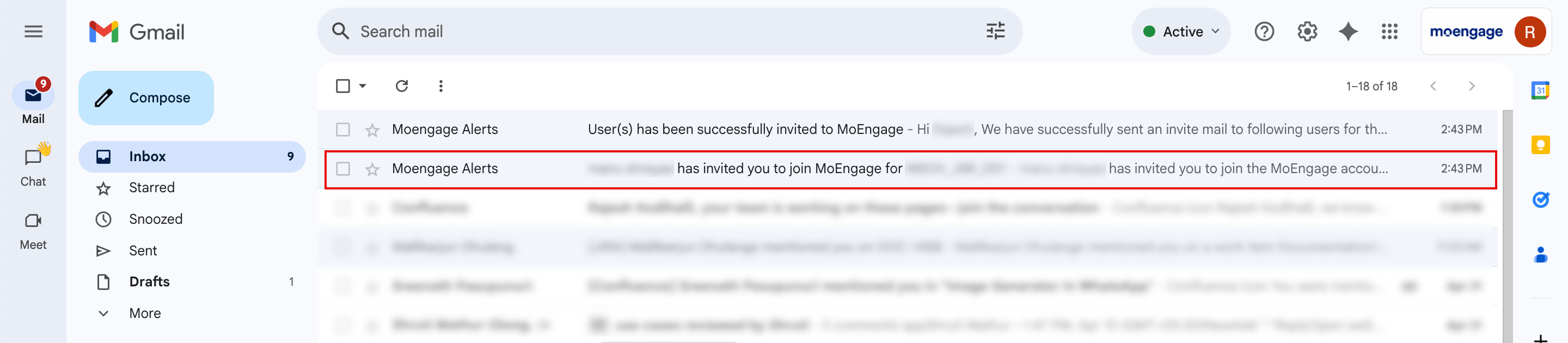 If you haven't received this email, contact your company's MoEngage Admin or Manager. Roles with the **Create & Manage** [permission](/user-guide/settings/account/team-management/access-roles#permissions) under the **Team Members** component can send invitations. For more information, refer to [Invite a Member](/user-guide/settings/account/team-management/manage-members).
1. Open the email you received from **Moengage Alerts**.
2. Click the **click here** link.
If you haven't received this email, contact your company's MoEngage Admin or Manager. Roles with the **Create & Manage** [permission](/user-guide/settings/account/team-management/access-roles#permissions) under the **Team Members** component can send invitations. For more information, refer to [Invite a Member](/user-guide/settings/account/team-management/manage-members).
1. Open the email you received from **Moengage Alerts**.
2. Click the **click here** link.  You are taken to the Finish account setup page.
 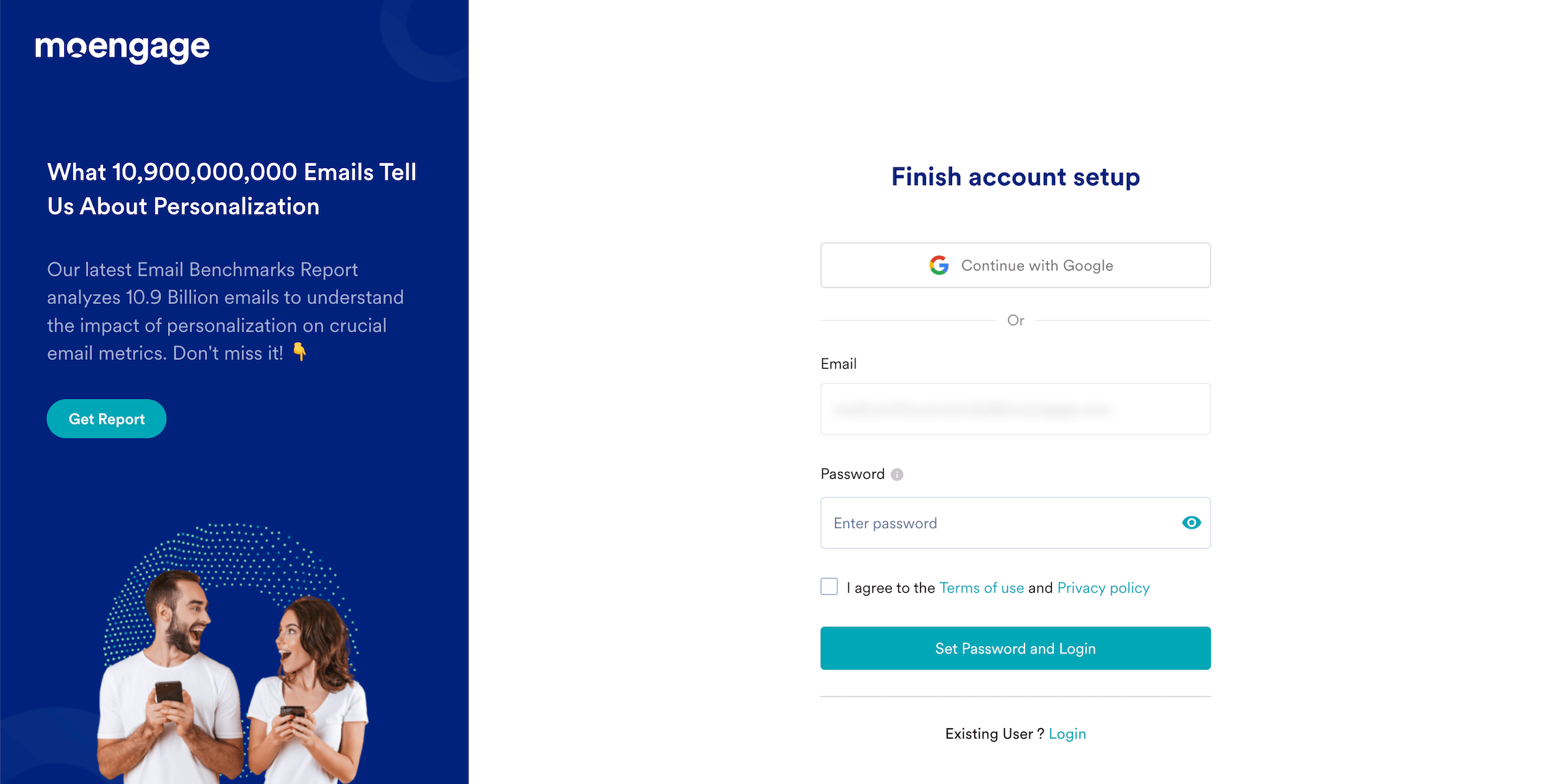 3. Complete your workspace setup using one of the following methods:
* [Set up a password](#set-up-a-password)
* [Sign in with Google](#sign-in-with-google)
### Set Up a Password
1. On the Finish account setup page, your email address is automatically populated in the **Email** box.
2. In the **Password** box, enter a new password. Ensure the password meets the following criteria:
* Contains 8 to 20 characters.
* Contains one capital letter.
* Contains one number.
* Contains one special character from: `! @ # $ % ^ & * ( ) _ ? / , < > ; : { } | ~` with no spaces.
3. Click the **Terms of use** link and read the terms.
4. Click the **Privacy policy** link and read the policy.
5. Select the **I agree to the Terms of use and Privacy policy** check box.
6. Click **Set Password and Login**. Your workspace setup is complete. You are directed to the Login to your accounts page.
3. Complete your workspace setup using one of the following methods:
* [Set up a password](#set-up-a-password)
* [Sign in with Google](#sign-in-with-google)
### Set Up a Password
1. On the Finish account setup page, your email address is automatically populated in the **Email** box.
2. In the **Password** box, enter a new password. Ensure the password meets the following criteria:
* Contains 8 to 20 characters.
* Contains one capital letter.
* Contains one number.
* Contains one special character from: `! @ # $ % ^ & * ( ) _ ? / , < > ; : { } | ~` with no spaces.
3. Click the **Terms of use** link and read the terms.
4. Click the **Privacy policy** link and read the policy.
5. Select the **I agree to the Terms of use and Privacy policy** check box.
6. Click **Set Password and Login**. Your workspace setup is complete. You are directed to the Login to your accounts page.  Bookmark your MoEngage login page for faster future access. If you forget your login URL, you can find it on the [MoEngage global login page](https://dashboard.moengage.com/). For more information, refer to [Find Your Login Page](/user-guide/getting-started/initial-setup/log-in-to-moengage#find-your-login-page).
7. [Log in to your workspace](/user-guide/getting-started/initial-setup/log-in-to-moengage).
### Sign In with Google
1. On the Finish account setup page, click **Continue with Google**.
Bookmark your MoEngage login page for faster future access. If you forget your login URL, you can find it on the [MoEngage global login page](https://dashboard.moengage.com/). For more information, refer to [Find Your Login Page](/user-guide/getting-started/initial-setup/log-in-to-moengage#find-your-login-page).
7. [Log in to your workspace](/user-guide/getting-started/initial-setup/log-in-to-moengage).
### Sign In with Google
1. On the Finish account setup page, click **Continue with Google**. 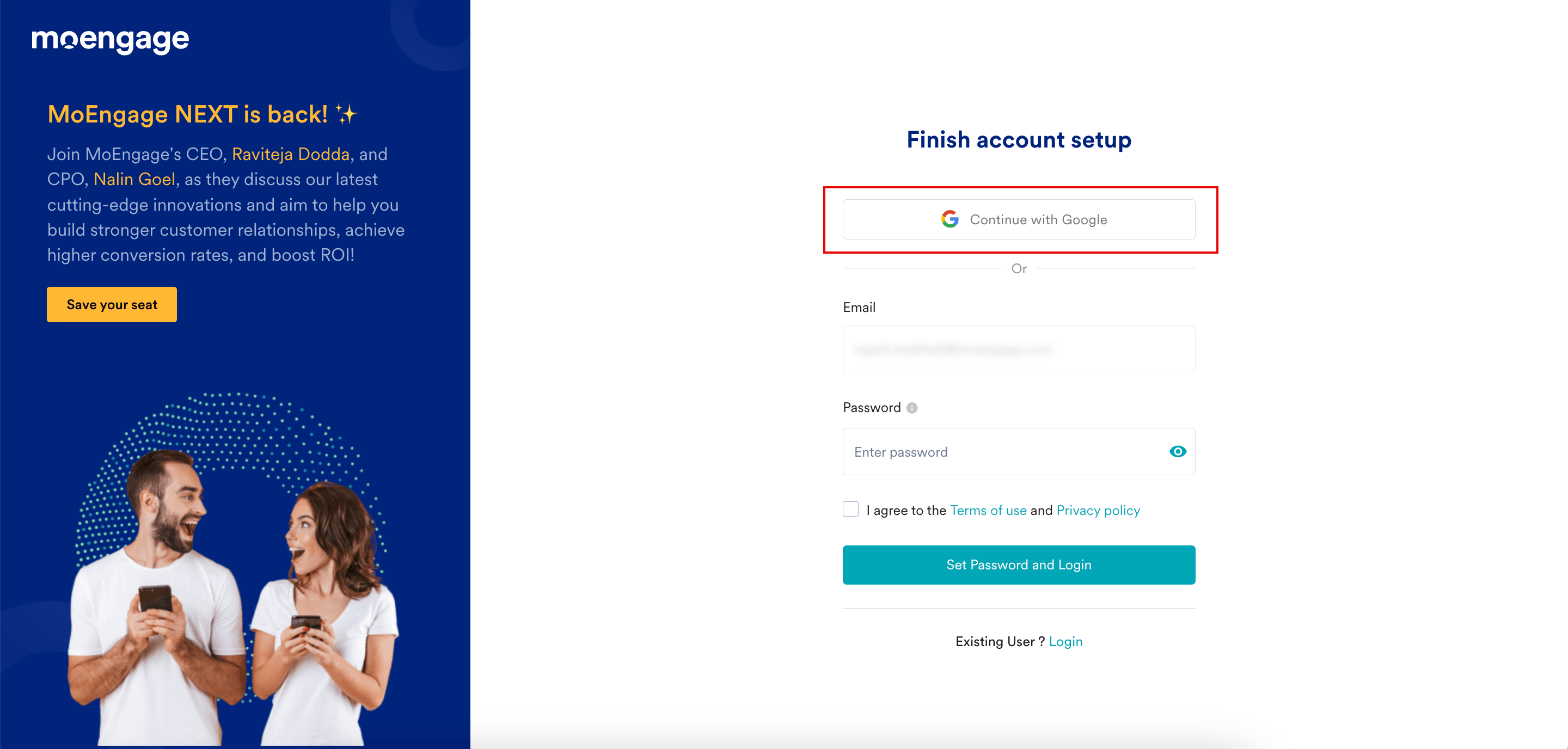 2. On the Choose an account page, choose your Google account.
 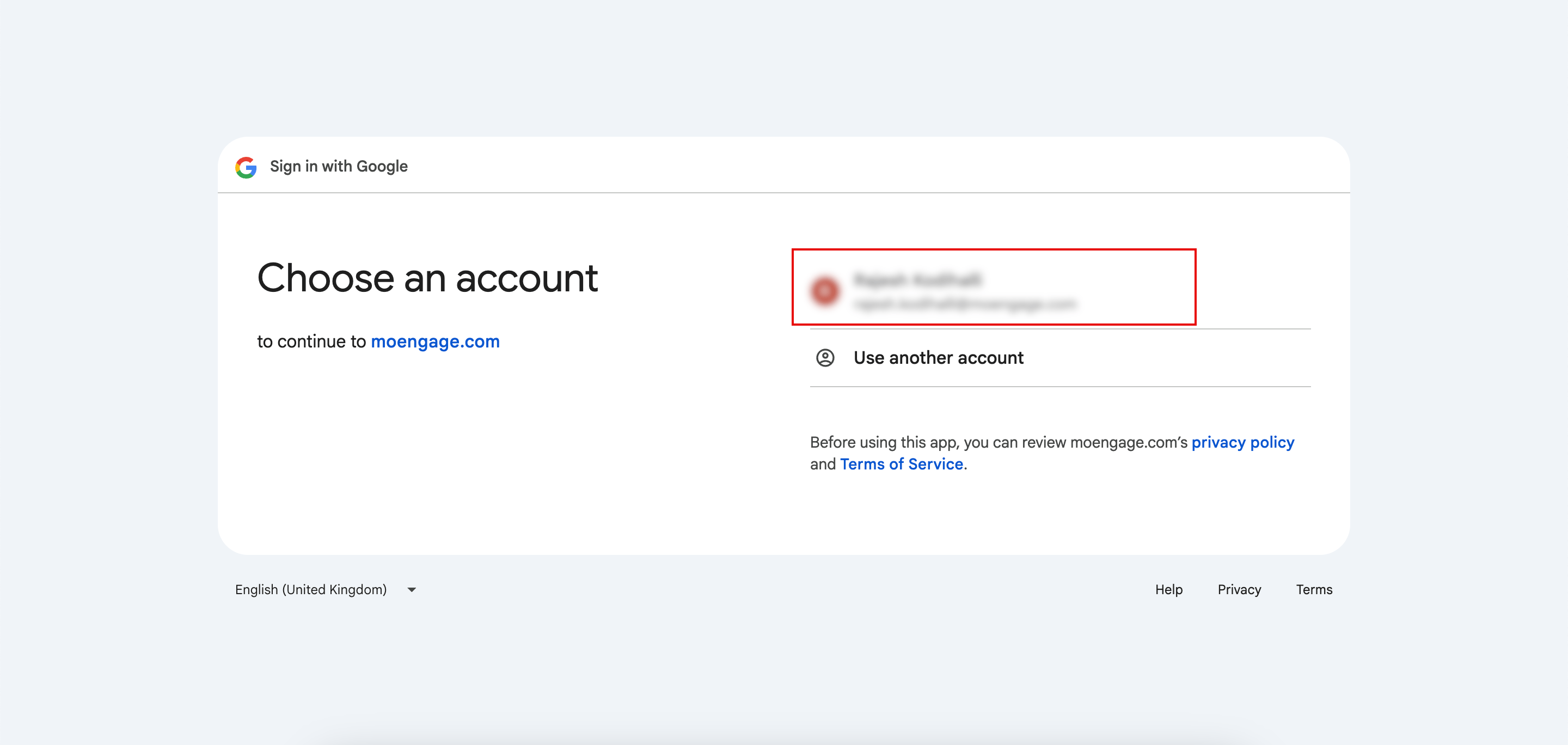 3. On the You're signing back in to moengage.com page, click **Continue**.
  Your workspace setup is complete. You are directed to the Login to your accounts page.
Bookmark your MoEngage login page for faster future access. If you forget your login URL, you can find it on the [MoEngage global login page](https://dashboard.moengage.com/). For more information, refer to [Find Your Login Page](/user-guide/getting-started/initial-setup/log-in-to-moengage#find-your-login-page).
4. [Log in to your workspace](/user-guide/getting-started/initial-setup/log-in-to-moengage).
## Next Steps
Set it up based on your business requirements:
* [Complete integrations](/developer-guide/introduction)
* [Invite members](/user-guide/settings/account/team-management/manage-members)
* [Configure settings for your workspace](/user-guide/settings)
* [Create campaigns](/user-guide/campaigns-and-channels)
* Download the **MoEngage Go** mobile app to view and manage campaigns: [iOS (App Store)](https://apps.apple.com/us/app/moengage-go/id6755712030?utm_source=help_docs\&utm_medium=referral\&utm_campaign=app_download) | [Android (Google Play)](https://play.google.com/store/apps/details?id=com.moengage.go\&utm_source=help_docs\&utm_medium=referral\&utm_campaign=app_download)
Your workspace setup is complete. You are directed to the Login to your accounts page.
Bookmark your MoEngage login page for faster future access. If you forget your login URL, you can find it on the [MoEngage global login page](https://dashboard.moengage.com/). For more information, refer to [Find Your Login Page](/user-guide/getting-started/initial-setup/log-in-to-moengage#find-your-login-page).
4. [Log in to your workspace](/user-guide/getting-started/initial-setup/log-in-to-moengage).
## Next Steps
Set it up based on your business requirements:
* [Complete integrations](/developer-guide/introduction)
* [Invite members](/user-guide/settings/account/team-management/manage-members)
* [Configure settings for your workspace](/user-guide/settings)
* [Create campaigns](/user-guide/campaigns-and-channels)
* Download the **MoEngage Go** mobile app to view and manage campaigns: [iOS (App Store)](https://apps.apple.com/us/app/moengage-go/id6755712030?utm_source=help_docs\&utm_medium=referral\&utm_campaign=app_download) | [Android (Google Play)](https://play.google.com/store/apps/details?id=com.moengage.go\&utm_source=help_docs\&utm_medium=referral\&utm_campaign=app_download)