> ## Documentation Index
> Fetch the complete documentation index at: https://moengage-doc-2312-standard-user-attributes.mintlify.site/llms.txt
> Use this file to discover all available pages before exploring further.
# Sendtric
# Introduction
[Sendtric](https://www.sendtric.com/) provides countdown timers that help to email maximise conversions, generate more sales, and inject urgency into your landing pages, emails and marketing touch points.
# MoEngage × Sendtric
With the MoEngage and Sendtric integration, you can add countdown timers to emails that contain time-sensitive products, sales, or events.
# Integration
**Prerequisites**
Access to your Sendtric dashboard.
## Step 1: Create your countdown timer on Sendtric
1. Go to the Sendtric dashboard and create your countdown timer. Refer to the [document here to know more](https://www.sendtric.com/beginners-guide-to-email-countdown-timers/) on creating countdown timers on sendtric:\ 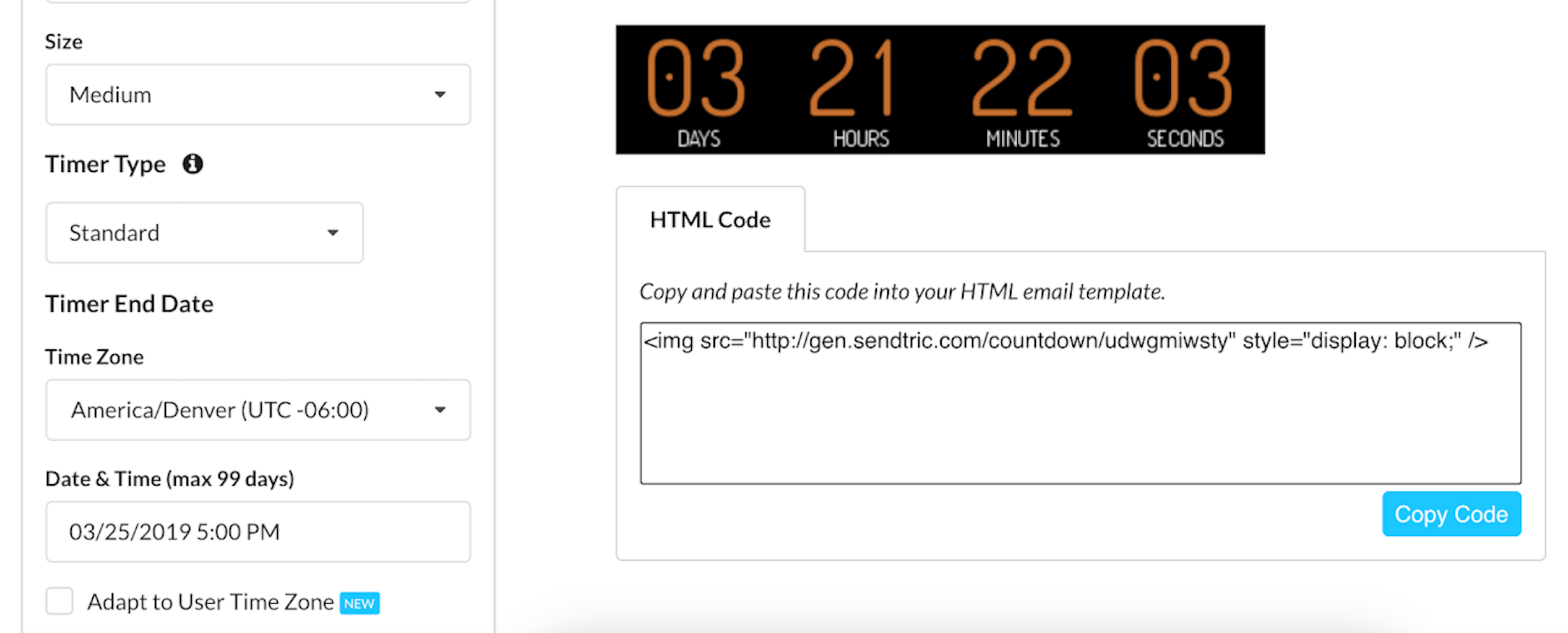 2. Once you have created your timer, you can just an option to *code code*.
3. Copy this code. You will need to paste it inside your MoEngage Campaign's Template.
## Step 2: Use this code inside MoEngage Campaigns
To include the Sendtric code in your MoEngage campaign, on step 2 of the campaign creation:
2. Once you have created your timer, you can just an option to *code code*.
3. Copy this code. You will need to paste it inside your MoEngage Campaign's Template.
## Step 2: Use this code inside MoEngage Campaigns
To include the Sendtric code in your MoEngage campaign, on step 2 of the campaign creation:
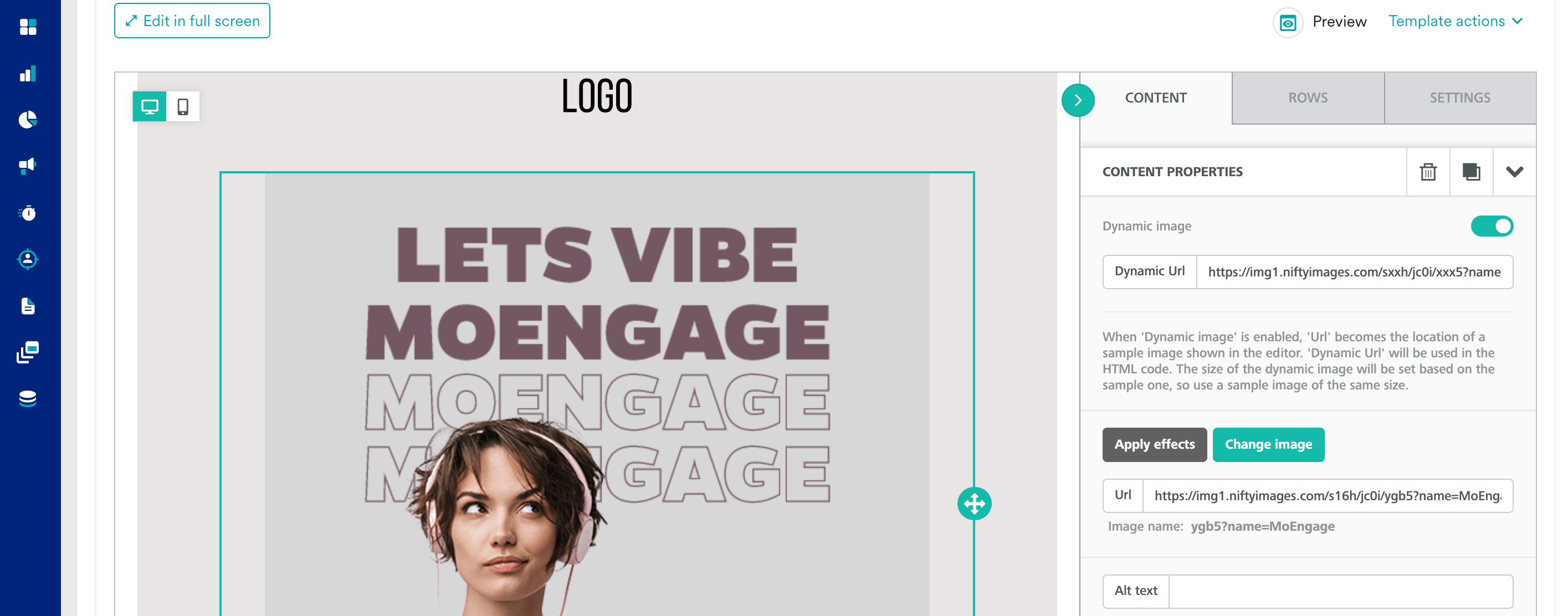 1. Create a new HTML block
2. Paste the copied code from Step 2 inside HTML Block.
3. Replace the `MERGE_TAG` with MoEngage Templating code by typing "@" and selecting the appropriate attribute to personalize:
```html HTML theme={null}
```
You can choose to view the Preview by clicking on the Preview icon or test your campaign.
1. Create a new HTML block
2. Paste the copied code from Step 2 inside HTML Block.
3. Replace the `MERGE_TAG` with MoEngage Templating code by typing "@" and selecting the appropriate attribute to personalize:
```html HTML theme={null}
```
You can choose to view the Preview by clicking on the Preview icon or test your campaign.